
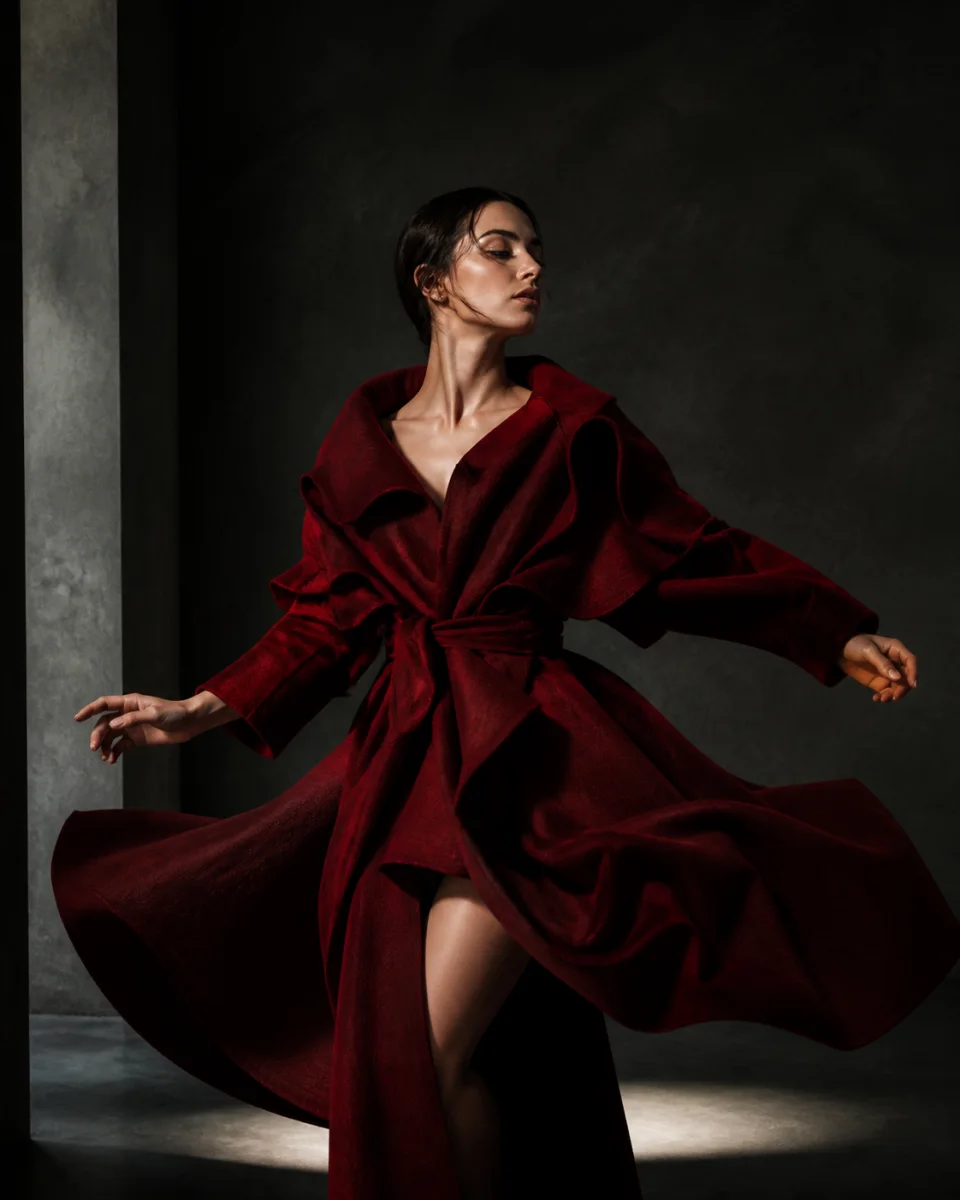
What MiniMax H3 Image to Video does
MiniMax H3 Image to Video turns a still image into a moving video clip. Upload a first frame, describe the action, camera, atmosphere, and sound, then choose duration and aspect ratio. MiniMax H3 Image to Video uses the image as the visual anchor, so the generation begins with a subject, composition, palette, and environment that you already selected.
Use MiniMax H3 Image to Video when appearance matters more than discovering a scene from text alone. A product render, character illustration, campaign photo, landscape, or designed first frame can guide the output. MiniMax H3 Image to Video adds motion around that anchor while the prompt explains what should change and what should stay recognizable.
Prepare a first frame for MiniMax H3 Image to Video
Choose a clean image with a readable subject. MiniMax H3 Image to Video benefits from clear edges, consistent lighting, and enough visual space for the planned movement. If the subject is cropped tightly, there may be little room for a wide camera move. If the background is cluttered, MiniMax H3 Image to Video must interpret more competing details while it animates the scene.
Match the source image to the output ratio whenever possible. A vertical image gives MiniMax H3 Image to Video a natural starting point for a 9:16 clip, while a wide frame suits 16:9 or 21:9. MiniMax H3 Image to Video can work with different compositions, but choosing a compatible frame reduces the need to invent or crop important areas around the subject.
Direct MiniMax H3 Image to Video motion
Describe the change that should happen after the uploaded frame. MiniMax H3 Image to Video can move the subject, camera, environment, light, or a combination of those elements. Use concrete verbs such as turns, opens, rises, drifts, rotates, walks, or flows. MiniMax H3 Image to Video responds to visible motion more clearly than broad requests such as “make it dynamic.”
State the pace and direction. A MiniMax H3 Image to Video prompt might ask fabric to move gently from left to right while the camera pushes forward. Another might keep the camera locked while a package opens. MiniMax H3 Image to Video becomes easier to review when the main movement has a starting state, a direction, and an end state that can fit inside the selected duration.
Preserve the subject in MiniMax H3 Image to Video
Tell MiniMax H3 Image to Video which parts of the source image must remain stable. For a product, that may be shape, label placement, material, and color. For a character, that may be face, clothing, silhouette, and age. For an illustration, that may be line style and palette. MiniMax H3 Image to Video needs these priorities because movement can otherwise compete with visual consistency.
Use positive preservation language. “Keep the bottle shape and label readable while light travels across the surface” gives MiniMax H3 Image to Video both an invariant and an action. Avoid an enormous negative list. MiniMax H3 Image to Video works better when the prompt identifies the few details that define the subject and explains how the scene should move around them.
Guide the camera in MiniMax H3 Image to Video
Camera direction determines whether MiniMax H3 Image to Video feels like a subtle animation or a new shot. A slow push adds depth while preserving the original composition. An orbit reveals additional sides of an object. A lateral track can follow a moving subject. MiniMax H3 Image to Video can combine camera and subject motion, but one primary camera instruction is usually easier to control.
Consider what the source image can support. A flat front-facing product image may not contain enough visual information for an extreme orbit. MiniMax H3 Image to Video may need to infer hidden surfaces. A small push, tilt, or parallax move asks for less invention. MiniMax H3 Image to Video is most predictable when the camera move respects the perspective and geometry already present in the first frame.
Use first and last frames with MiniMax H3 Image to Video
MiniMax H3 Image to Video can use a first frame alone or a first-and-last-frame workflow. The first frame establishes the opening composition. The last frame gives the generation a visual destination. MiniMax H3 Image to Video can then build motion between those states while the prompt explains the transition, action, camera, and sound that connect them.
Choose frames that can plausibly transition. MiniMax H3 Image to Video has to connect subject position, scale, perspective, lighting, and background across a short clip. If the two images describe completely unrelated scenes, the transition may feel abrupt. MiniMax H3 Image to Video works better when at least one strong visual relationship remains, such as the same subject, setting, camera angle, or material.
Add sound to MiniMax H3 Image to Video
MiniMax H3 Image to Video can pair movement with native audio direction. Describe the sound event that belongs to the visual change: fabric movement, footsteps, a mechanical click, wind, water, room tone, dialogue, or music. MiniMax H3 Image to Video can use that instruction to make the clip feel like one scene rather than a silent animation with unrelated audio added later.
Keep the sound brief focused. A MiniMax H3 Image to Video product reveal may need one controlled impact and a quiet tonal bed. A portrait may need one short spoken line and subtle ambience. MiniMax H3 Image to Video should not be asked to solve every audio layer in a few seconds. Name the sound that carries the moment and remove anything that does not support the visible action.
Choose duration for MiniMax H3 Image to Video
Duration controls how much change MiniMax H3 Image to Video can complete. Four to six seconds works for a blink, small gesture, light sweep, or product turn. Eight to ten seconds can support a slower camera move or clearer performance. Longer options allow a more deliberate transition. MiniMax H3 Image to Video still benefits from one connected action even when more time is available.
If a MiniMax H3 Image to Video prompt includes several beats, check whether each beat can be seen. A subject cannot convincingly stand, cross a room, interact with an object, and return to the opening pose in a very short clip without compression. MiniMax H3 Image to Video provides a credit estimate before generation, so duration can be chosen according to both creative need and available balance.
Select a frame shape for MiniMax H3 Image to Video
The selected ratio tells MiniMax H3 Image to Video how to frame the output. Vertical formats support mobile-first portraits and social placements. Wide formats support landscapes, products, presentation screens, and lateral movement. Square formats keep attention near the center. MiniMax H3 Image to Video should receive a source image and motion plan that make sense inside the same shape.
Do not rely on a final crop to solve composition. If the intended MiniMax H3 Image to Video output is vertical, prepare a frame with enough room around the subject for vertical movement. If it is wide, use the horizontal space for environment or travel. MiniMax H3 Image to Video can then spend more of the generation on motion instead of reconstructing missing areas around a mismatched crop.
Apply MiniMax H3 Image to Video to real projects
MiniMax H3 Image to Video can animate campaign stills, product renders, character art, concept frames, architecture, landscapes, album visuals, educational illustrations, and social posts. It is useful when a creator already has a strong approved visual but needs movement for a video placement. MiniMax H3 Image to Video preserves the value of that starting design while adding time, camera, and sound.
Give every MiniMax H3 Image to Video clip a placement. It may introduce a product, animate a poster, establish a location, carry a transition, or add motion behind a title. That decision shapes the prompt and duration. MiniMax H3 Image to Video becomes more efficient when success is defined before generation, such as preserving a face, keeping a package readable, or ending on a specific frame.
Review MiniMax H3 Image to Video results
Review a MiniMax H3 Image to Video result in five parts: identity, motion, camera, composition, and sound. Decide which part prevents the clip from being usable. Change only the most important instruction and keep the source frame and other settings stable. MiniMax H3 Image to Video iteration is easier to evaluate when each new result tests one controlled adjustment.
Look at the opening and closing frames as well as the middle. MiniMax H3 Image to Video should begin from a recognizable relationship to the uploaded image and complete the intended action without a distracting jump. Save useful prompts and settings in the generation record. MiniMax H3 Image to Video outputs remain available to the authenticated owner for playback and download after completion.
Keep MiniMax H3 Image to Video private
MiniMax H3 Image to Video uses an authenticated account workflow. Uploaded frames, prompts, generation records, and completed outputs are private to the owner. Provider input access uses short-lived signed URLs, and a successful result is copied into private storage before playback. MiniMax H3 Image to Video does not require the source frame or result to become a public gallery item.
Upload only images you have the right to use. MiniMax H3 Image to Video can support commercial creation under the applicable plan and terms, but ownership of an input does not change automatically. The creator remains responsible for people, characters, brands, artwork, and other protected material. MiniMax H3 Image to Video should be used with the same rights review as any other production asset.
MiniMax H3 Image to Video questions
Does MiniMax H3 Image to Video require a last frame?
No. MiniMax H3 Image to Video can animate a first frame by itself. Add a last frame when the clip needs to arrive at a particular visual state. The prompt should explain how the motion connects the two images.
Can MiniMax H3 Image to Video preserve a person or product?
MiniMax H3 Image to Video uses the uploaded frame as a visual anchor, but generation can still introduce variation. State the identity, shape, color, clothing, label, or material details that matter most. Use a moderate camera move when hidden surfaces would otherwise require extensive invention.
Can MiniMax H3 Image to Video create audio?
Yes. MiniMax H3 Image to Video supports native audio direction. Describe the dialogue, ambience, sound effect, music character, or silence that should accompany the motion. Keep the instruction tied to the visible scene.
How long can MiniMax H3 Image to Video run?
MiniMax H3 Image to Video offers selectable durations from 4 to 15 seconds in the current workflow. Credit requirements change with duration and settings. Choose enough time for the movement to finish without adding unused seconds.
Can I download MiniMax H3 Image to Video outputs?
Yes. A completed MiniMax H3 Image to Video output remains playable and downloadable to its authenticated owner. The private workspace keeps the generation record and completed file available without publishing them to other visitors.