
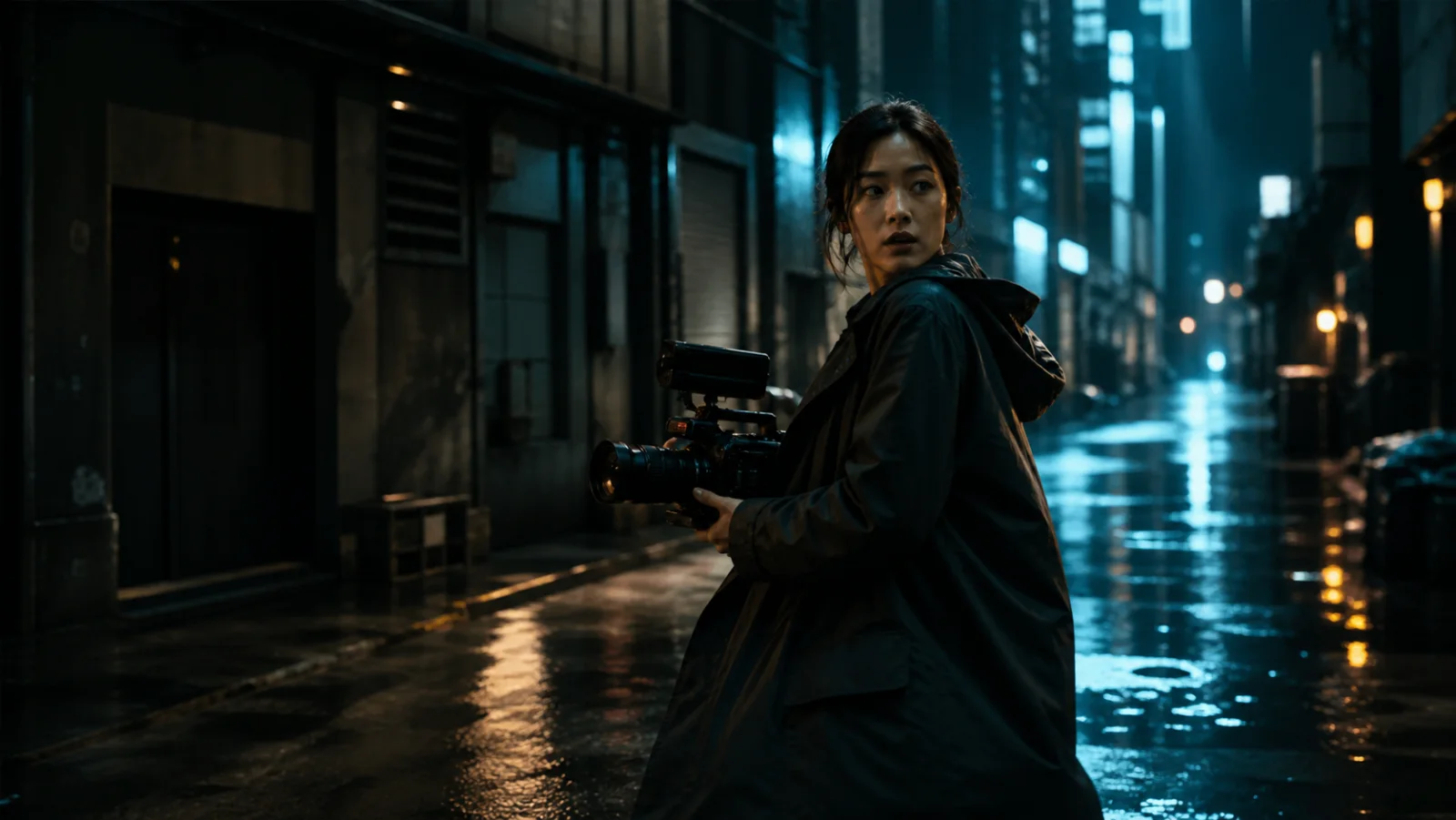
What MiniMax H3 Text to Video does
MiniMax H3 Text to Video turns a written direction into a generated video clip. You describe the subject, location, action, camera, visual mood, and sound, then choose the duration and frame shape before generation. MiniMax H3 Text to Video is useful when you have a scene in mind but do not have a source image. It gives the model a clear creative brief while keeping the first step as simple as writing a prompt.
The strongest MiniMax H3 Text to Video requests read like compact production notes. They state what must appear, what should move, how the camera should behave, and what the viewer should hear. MiniMax H3 Text to Video can then treat those details as one connected shot instead of a loose list of visual adjectives. The goal is not a long screenplay. The goal is a precise description of the clip you want to review.
Start MiniMax H3 Text to Video with one clear shot
Begin MiniMax H3 Text to Video with one subject and one main action. A prompt such as “a cyclist crosses a wet city street while the camera tracks beside her” gives the scene a visible center. Add the time of day, lighting, and atmosphere after the action is clear. MiniMax H3 Text to Video works best when every extra detail supports that main shot rather than competing with it.
Avoid packing several unrelated locations into one short generation. MiniMax H3 Text to Video has only a few seconds to establish the subject, complete the action, and resolve the camera move. If your idea needs an interior, an exterior, and a product close-up, treat them as separate clips. MiniMax H3 Text to Video becomes easier to direct when each generation has a single purpose and a clear end state.
Write a MiniMax H3 Text to Video prompt in layers
A reliable MiniMax H3 Text to Video prompt can follow six layers: subject, setting, action, camera, look, and sound. Write the subject first, then specify where the scene happens. Describe the action with a concrete verb. Add one camera instruction, such as a slow push, orbit, tracking move, or locked frame. Finish with lighting, color, material detail, dialogue, ambience, or music that belongs in the scene.
Use plain language for MiniMax H3 Text to Video. “The camera slowly pushes toward the watch as morning light moves across brushed steel” is more actionable than “make it epic and premium.” MiniMax H3 Text to Video needs visible direction, not praise words. When you can picture how a detail changes the frame, movement, or soundtrack, that detail usually deserves a place in the prompt.
Control the camera in MiniMax H3 Text to Video
Camera direction changes how MiniMax H3 Text to Video presents the same subject. A locked wide frame feels observational. A handheld close shot can feel immediate. A slow orbital move reveals shape and depth. A lateral tracking shot emphasizes travel. Choose one primary camera behavior and describe its pace. MiniMax H3 Text to Video can use that instruction to organize the subject movement and the background around a consistent point of view.
Do not stack incompatible moves in one short MiniMax H3 Text to Video prompt. A rapid crane, orbit, zoom, and handheld shake can create an unclear result because the model must satisfy too many directions at once. MiniMax H3 Text to Video is easier to evaluate when the camera instruction is specific enough to notice but simple enough to complete within the selected duration.
Direct movement with MiniMax H3 Text to Video
Movement should explain what changes from the first moment to the last. MiniMax H3 Text to Video can follow a person who turns, an object that opens, fabric that catches wind, or light that travels across a surface. Describe the direction and pace of the motion. MiniMax H3 Text to Video benefits from phrases such as “walks from the doorway toward the window” or “rotates once while the camera remains still.”
Include physical cues when they matter. Weight, wind, water, reflections, dust, and fabric react differently. MiniMax H3 Text to Video can use these cues to make motion feel connected to the scene. Keep the instruction observable: say how the coat moves or how the liquid splashes. MiniMax H3 Text to Video does not need a technical simulation brief, but it does need enough material context to understand the desired behavior.
Add sound to MiniMax H3 Text to Video
MiniMax H3 Text to Video can combine the visual scene with native audio direction. State whether the clip needs dialogue, room tone, environmental sound, music, or silence. If a character speaks, keep the line short and identify the speaker. If the scene is a product shot, describe the sound design in practical terms. MiniMax H3 Text to Video can then connect the sound event to the visible action instead of treating audio as an unrelated layer.
Use sound selectively. A MiniMax H3 Text to Video prompt that asks for dialogue, a full song, crowd noise, machinery, and detailed sound effects may be harder to control than one focused audio direction. Decide what the viewer must hear to understand the clip. MiniMax H3 Text to Video is most useful when sound reinforces the scene, such as a door latch matching the close-up or rain matching the street reflections.
Choose duration for MiniMax H3 Text to Video
Duration determines how much action MiniMax H3 Text to Video can show without rushing. Four to six seconds suits a simple reveal, reaction, or camera move. Eight to ten seconds allows a clearer beginning and ending. Longer options can support a more deliberate performance or movement sequence. MiniMax H3 Text to Video should still focus on one coherent shot even when you select more time.
Match prompt complexity to duration. If MiniMax H3 Text to Video must introduce a subject, cross a room, deliver dialogue, and end on a product detail, a short duration may compress every beat. Either choose more time or remove actions. MiniMax H3 Text to Video gives you a credit estimate before submission, so you can compare the creative need with the cost before starting the job.
Select an aspect ratio for MiniMax H3 Text to Video
The aspect ratio sets the canvas for MiniMax H3 Text to Video. Use 16:9 or 21:9 for landscape compositions, product scenes, presentations, and cinematic framing. Use 9:16 for vertical social placements and mobile-first viewing. Square and near-square formats can keep a central subject prominent. MiniMax H3 Text to Video should receive composition language that matches the selected frame.
Think about where the subject sits. A vertical MiniMax H3 Text to Video prompt can ask for a full-body subject with space above and below. A wide MiniMax H3 Text to Video prompt can describe lateral movement or negative space beside a product. Choosing the ratio before generation helps you write a prompt that uses the available frame instead of cropping an idea designed for another format.
Use MiniMax H3 Text to Video for practical work
MiniMax H3 Text to Video can produce concept shots for product launches, campaign drafts, short narrative moments, music visuals, educational scenes, and social content. It is especially helpful when filming would require a location, weather condition, prop, or camera move that is difficult to arrange. MiniMax H3 Text to Video lets a creator test the direction before deciding whether to generate more clips or move into a wider edit.
Treat each output as a production asset with a job. A MiniMax H3 Text to Video clip might open an ad, illustrate one sentence in a lesson, create a transition, or establish a mood. Give the file a clear purpose before you write the prompt. MiniMax H3 Text to Video becomes more efficient when the success criteria are visible: the product stays readable, the action completes, or the camera ends on the intended frame.
Review and iterate MiniMax H3 Text to Video
Review MiniMax H3 Text to Video by separating the result into subject, motion, camera, look, and sound. Identify the one area that most affects usability. Change that instruction first and keep the rest of the prompt stable. MiniMax H3 Text to Video iteration is easier to understand when each new generation tests one deliberate change instead of replacing the entire direction.
Save the settings that worked. MiniMax H3 Text to Video outputs remain in the authenticated account workspace after completion, where an owner can play or download the private result. The saved prompt and generation record make it easier to compare versions. MiniMax H3 Text to Video should be judged by whether the final clip serves its intended placement, not by whether every frame contains more effects.
Keep MiniMax H3 Text to Video private
MiniMax H3 Text to Video generation requires an authenticated account. Prompts, owned inputs, task records, and completed outputs belong to that account workflow. Generated files are copied into private storage before playback and download. MiniMax H3 Text to Video does not require you to publish the prompt or output as part of the generation process.
Only upload or describe material you have the right to use. MiniMax H3 Text to Video can support commercial workflows under the applicable plan and terms, but the creator remains responsible for names, brands, characters, music direction, and other protected material included in a request. MiniMax H3 Text to Video is a creation tool, not a transfer of rights from another owner.
MiniMax H3 Text to Video questions
Does MiniMax H3 Text to Video need an image?
No. MiniMax H3 Text to Video starts from a written prompt. If a specific starting frame must be preserved, use the image workflow instead. MiniMax H3 Text to Video is the direct choice when the scene can be described without uploading a visual anchor.
Can MiniMax H3 Text to Video create audio?
Yes, MiniMax H3 Text to Video supports native audio direction. Describe the required dialogue, ambience, sound effect, music character, or silence in the prompt. Keep the audio brief focused so the sound supports the visible action.
How long is a MiniMax H3 Text to Video clip?
MiniMax H3 Text to Video offers selectable durations from 4 to 15 seconds in the current workflow. The available credit estimate changes with duration and generation settings. Choose the shortest duration that can complete the intended action without rushing it.
Can I download MiniMax H3 Text to Video results?
Yes. A completed MiniMax H3 Text to Video result remains playable and downloadable to its authenticated owner. The account workspace keeps generation history so completed clips can be accessed again without making the output public.
What makes a strong MiniMax H3 Text to Video prompt?
A strong MiniMax H3 Text to Video prompt names the subject, setting, main action, camera behavior, visual treatment, and essential sound. It avoids unrelated scenes and gives the clip one clear purpose. Start concrete, review the result, and change one instruction at a time.